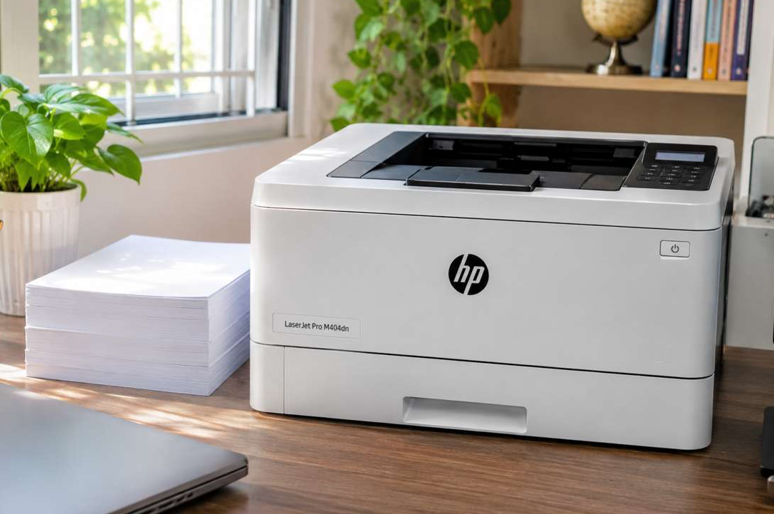
An HP LaserJet is a tough machine. Plenty of them run for years without a fuss. But “tough” doesn’t mean “care-free”. Skip the basics and even a good printer starts jamming, fading and making odd noises.
The good news? You don’t need technical skills. A few small habits do most of the work. Here are seven you can start today.
Tip 1: Use the Right Toner
This one matters more than people think. A cartridge that doesn’t match your printer can cause errors, faded pages and leaks. Always check the full model name and toner number before you buy. Then stick with good-quality HP LaserJet toner from a supplier who lists your exact model.
Cheap, unknown cartridges can look like a bargain. But they often hold less powder or cause errors. You end up paying twice.
Tip 2: Use Decent Paper
Paper is the quiet cause of many problems. Damp, wrinkled or very thin paper jams easily. It also leaves more dust inside the printer.
A few easy rules:
- Keep paper in its wrapper until you need it
- Store it flat, in a cool, dry spot
- Don’t mix old and new paper in the tray
- Match the paper type in your settings to what you loaded
Good paper costs a little more. It saves a lot of jams.
Tip 3: Don’t Overfill the Tray
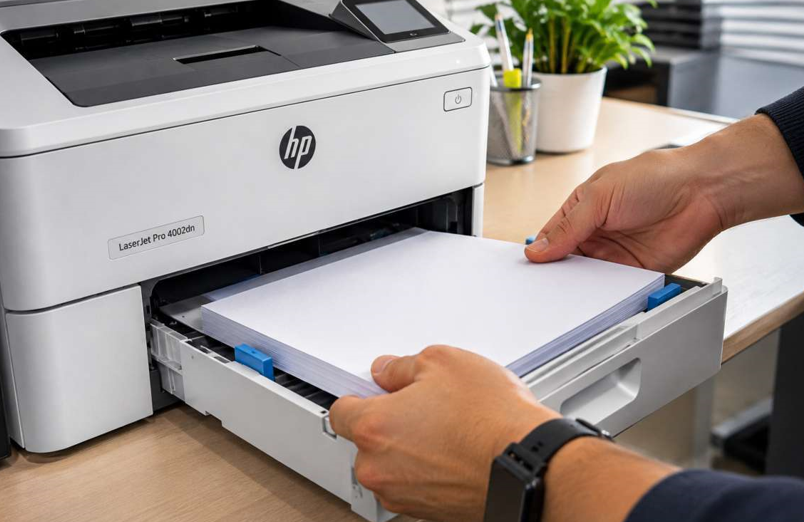
It’s tempting to load a huge stack so you don’t have to refill. But an overstuffed tray makes the printer grab two sheets at once. Keep the stack below the fill line. And fan the sheets before loading, so they don’t stick together.
Tip 4: Keep It Clean
Dust is a printer’s enemy. It builds up on rollers and in the paper path, and it leads to streaks and jams.
Once a week, wipe the outside with a dry, lint-free cloth. Once a month, switch the printer off, unplug it and let it cool. Then gently wipe visible dust from the paper path. Don’t use water or sprays inside. And never touch the drum surface with your fingers. Skin oils leave marks.
Tip 5: Print Regularly
A printer that sits idle for weeks isn’t happy. Dust settles. Parts stiffen. Toner can settle unevenly. Print a few pages every week, even if it’s just a test page. It keeps everything moving.
Tip 6: Place It Well
Where your printer sits makes a difference. Pick a spot that is:
- Away from direct sunlight and heaters
- Free from damp or humidity
- Not too dusty
- Well ventilated, so heat can escape
- On a stable surface
Put it in a cupboard with the door shut and it will run hot. Hot printers wear out faster.
Tip 7: Listen for Warning Signs
Printers usually warn you before they fail. You just have to notice. Pay attention to:
- Paper jams that keep coming back
- Lines or marks repeating down the page
- Faded prints even with fresh toner
- Grinding, clicking or squealing noises
- A burning smell
- Error messages that won’t clear
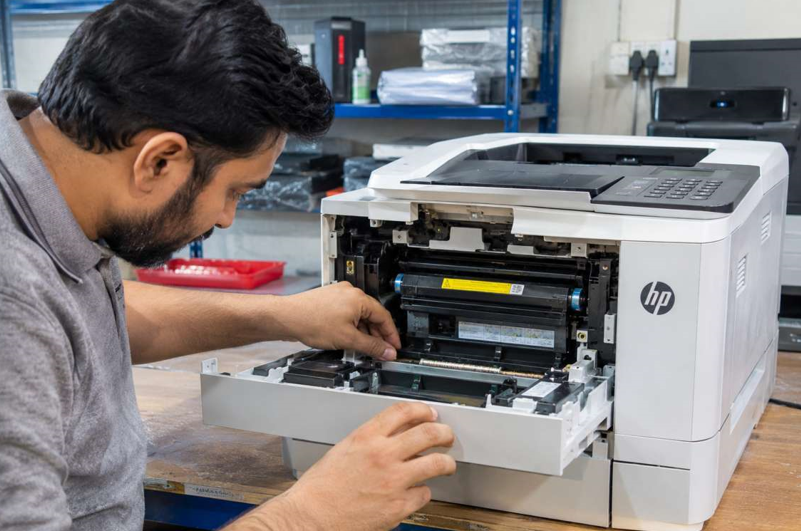
Catch these early and the fix is usually small. Ignore them and it grows. If you notice any of them, a trusted HP laser printer repair service can find the cause before it turns into a bigger bill. Waiting rarely makes a problem cheaper.
A Simple Weekly Routine
You don’t need a long checklist. Try this:
- Monday: Print a test page. Check for lines or faded areas.
- Check toner: Glance at the level. Order a spare at the first warning.
- Wipe the outside: Thirty seconds with a dry cloth.
- Check the tray: Remove curled sheets and make sure it isn’t overfilled.
That’s about five minutes. It adds up over a year.
Common Mistakes to Avoid
- Pulling stuck paper out fast
- Using water or spray cleaners inside the printer
- Touching the drum or fuser
- Ignoring “Toner Low” until the printer stops
- Buying toner without checking the model number
- Opening the printer without training
Slow and gentle wins every time.
Easy Ways to Save Toner
Good care isn’t only about the printer. It’s also about your toner.
- Use draft or economy mode for everyday pages
- Print in black and white by default
- Preview before printing, to catch mistakes
- Turn on double-sided printing
- Keep spare cartridges sealed, in a cool, dry place
These cut your running costs without any effort.
When Should You Get Extra Help?
Ask a technician if:
- The same problem returns after you’ve cleaned and reset
- Prints stay poor with a new cartridge
- You hear grinding or clicking
- You smell something burning
- The printer shuts down or restarts by itself
Please don’t take the printer apart yourself. The fuser inside gets very hot, and small parts break easily.
Final Thoughts
Looking after an HP LaserJet isn’t complicated. Use the right toner. Use decent paper. Don’t overfill the tray. Keep it clean, print regularly, give it some space and listen for warning signs. Do that, and your printer will reward you with clean pages and fewer surprises for years to come.