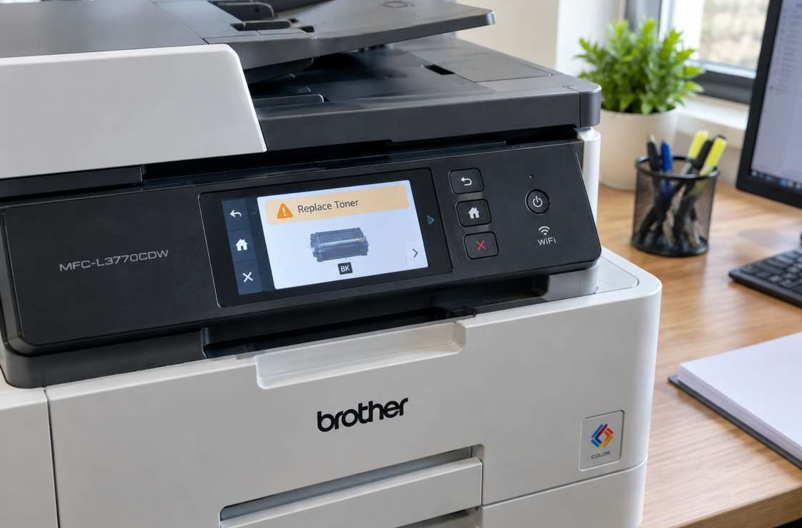
You send a document to print, and your Brother printer greets you with “Replace Toner.” Sometimes the cartridge really is empty. Other times the message shows up on a brand-new one, which is confusing and annoying.
The good news is that this message is common and usually easy to sort out. Often, all you need is the right Brother toner cartridges for your exact model, installed properly. Let’s look at what the message means and how to deal with it.
What Does “Replace Toner” Mean?
The message tells you the printer believes the toner cartridge is empty or unusable. Brother printers usually warn you in stages:
- Toner Low: The cartridge is running low. You can still print, but you should order a new one soon.
- Replace Toner: The printer thinks the toner has run out, so it may stop printing or print poorly.
- Toner or Cartridge Error: The printer can’t read the cartridge properly, which points to a fit or detection problem.
Knowing which message you have helps you choose the right fix.
Why Does the Message Appear?
- The toner is actually empty. This is the simplest explanation.
- The cartridge isn’t seated properly. If it isn’t clicked fully into place, the printer can’t read it.
- The wrong cartridge. One that doesn’t match your exact model can trigger the message right away.
- Dirty contacts or sensors. Dust or toner residue can stop the printer from detecting the cartridge.
- A low-quality cartridge. Cheap unbranded cartridges often have poor chips or less toner than promised.
- A worn drum unit. On many Brother printers the drum and toner are separate parts, so a tired drum can cause confusing messages.
How to Fix the “Replace Toner” Message
1. Check Whether the Cartridge Is Really Empty
Print a test page. If the text is faded or has white streaks, the toner is low. If the page looks fine, the problem is probably detection rather than toner level.
2. Shake the Cartridge Gently
Take the cartridge out and rock it gently from side to side a few times. This spreads the remaining toner and can give you extra pages while you wait for a replacement. Do it over a sheet of paper in case of spills.
3. Reinstall the Cartridge Properly
Switch off the printer and open the front cover. Remove the cartridge, then slide it back in until it sits firmly. Close the cover completely, since a half-closed cover can cause detection errors.
4. Clean the Contacts
Use a dry, lint-free cloth to wipe the metal contacts on the cartridge and the matching area inside the printer. Don’t use water or sprays, and never touch the drum surface with your fingers.
5. Make Sure the Cartridge Matches Your Model
Check the model number on your printer and compare it with the number on the cartridge box. Brother uses different cartridges for different series, so a close match isn’t enough.
6. Restart the Printer
Turn the printer off, unplug it for a minute, plug it back in and try again. This clears minor glitches that keep an old message on screen. If the warning stays even with a correct, brand-new cartridge, a faulty sensor may be the cause. A professional Brother printer repair in Dubai service can test it and fix it properly.
7. Check Your Manual
Some Brother models let you keep printing after the warning, and the steps differ between models. Your manual or Brother’s support site will show the exact options for your printer.
Should You Buy a New Cartridge?
If your pages are faint, the cartridge has been in use for a long time, or the message returns after every fix, it’s time for a replacement. Choose a cartridge that suits your model and comes from a supplier you trust. A good one gives you sharper text, steady quality and fewer error messages. A poor one can cost more in the end through wasted pages and repeat errors.
Simple Habits to Avoid Toner Errors
- Order a spare cartridge when you first see “Toner Low.”
- Keep new cartridges in their packaging until you need them.
- Remove all protective tape or covers before installing.
- Keep the printer in a clean, dust-free area.
- Close covers firmly after changing a cartridge.
- Use quality paper to reduce dust inside the machine.
When Should You Get Extra Help?
Sometimes the problem isn’t the toner at all. Consider getting help if:
- The message stays after you install a new, correct cartridge
- The printer can’t detect any cartridge you try
- You hear grinding or clicking when the printer starts up
- Prints still show lines or faded areas after replacing the toner
- The printer shuts down or shows other unclear errors
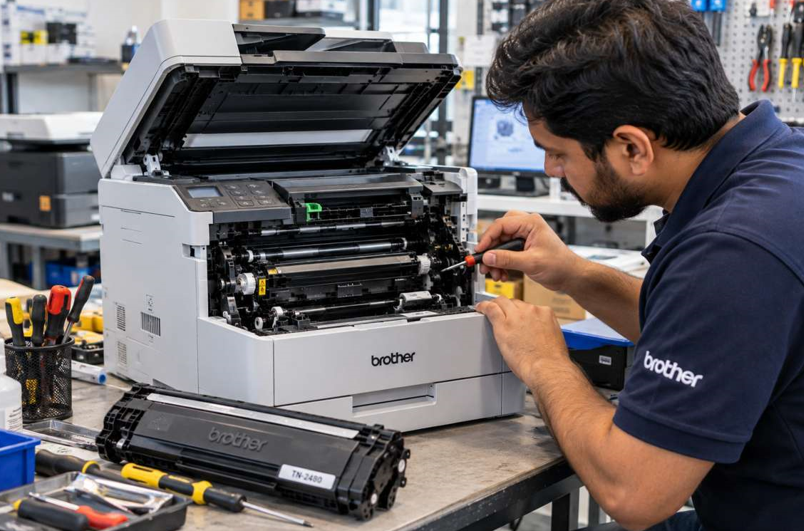
These signs can point to a faulty sensor or a worn drum or fuser. Opening the machine without training can damage delicate parts, so it’s safer to leave it to a technician.
Final Thoughts
The “Replace Toner” message looks serious, but it’s usually a simple case of an empty cartridge, a loose fit or a mismatched part. Check the cartridge, clean the contacts, confirm it fits your model, and replace it when it’s truly finished. If the message won’t go away, don’t keep fighting with it. Get it checked and get back to printing.